Your Calibre download is on the way
Calibre is on its way from the official Windows release door. The next hour covers finishing winget or the 64-bit MSI, launching the library window, choosing a library folder, adding a trusted e-book, opening the viewer or converting if needed, skipping random mirrors, and updating through the same door you used to install.
By Calibre editorial team Current release on GitHub Releases, published August 28, 2026
Download Calibre
Pick your system and the download starts.
winget install -e --id calibre.calibreOr take calibre-64bit-*.msi from calibre-ebook.com or GitHub Releases. Supporting: portable calibre-portable-installer-*.exe.
Two asks while the installer lands
If the project helped you, star kovidgoyal/calibre on GitHub. Stars help other Windows users find the real repository next to lookalike names.
Follow new builds via the releases feed. The feed lists current tags and asset names so you can see when the 64-bit MSI moves without refreshing the Releases page by hand.
The first hour with the e-book manager
Work the eight steps in order so you do not redo settings later. Finish the download before you chase portable extras. Confirm the library window opens before you blame the download. Add one trusted book before a bulk convert. Updates use the same winget id or official MSI you already trust. Longer install context: install on Windows, winget, and for this computer.
- Finish the Windows install. If you used winget, wait until
winget install -e --id calibre.calibreexits cleanly. Winget pulls the current Windows 64-bit MSI family from microsoft/winget-pkgs. If you took the 64-bit MSI by hand from the official site or GitHub, run it. Do not run a renamed setup from a search ad while you wait. - Launch the library window once. Start the program from Start or from Apps and features after the MSI. Pass SmartScreen only when the file came from the official site, GitHub, or winget. Confirm Add books and a library view appear. First run: first run.
- Confirm a library folder. Pick a folder on a disk you control and can back up. Avoid a temporary Downloads folder if you want the library to survive cleanups. Guides: add books.
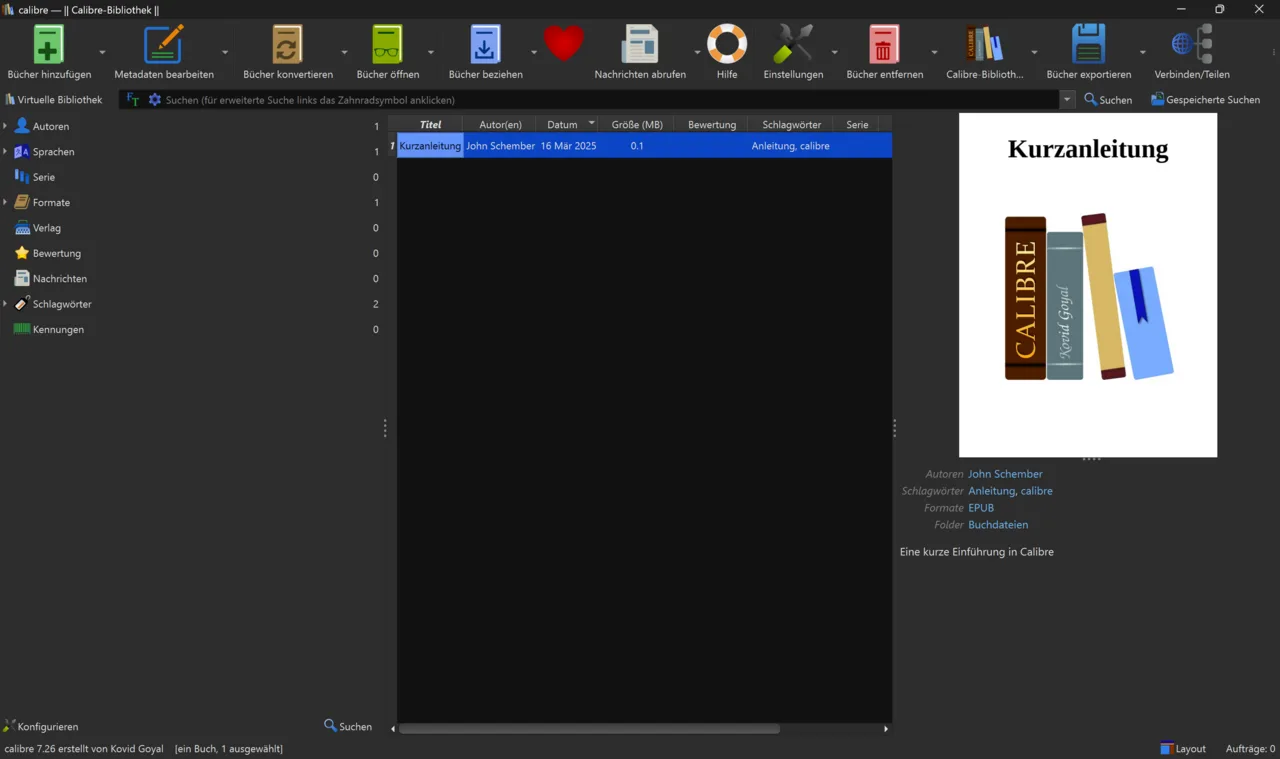
- Add a trusted e-book. Import one EPUB, Kindle-format file, or other supported book you already own. Optionally fetch metadata for cover and author. Guide: add books, viewer.
- Open the viewer or convert if needed. View the book in the built-in reader. If a device needs another format, use Convert books after the file sits in the library. Guide: convert, send to device.
- Skip random mirrors. If something fails, re-fetch from the official Windows download page, GitHub Releases, or winget. Softonic-style wrappers and blog accelerators are the wrong door. Safety: is it safe. Download-safe: download safe.
- Leave advanced extras for later. Content server, bulk news recipes, and plugin stacks can wait until one book opens cleanly. Content server notes: Content server.
- Plan the update door. If winget installed the package, upgrade with winget using the same id. If you used the MSI, take the newer 64-bit MSI from the same official door. Do not mix three mirrors. Update notes: update and uninstall.
What success looks like
You are done with the first hour when the library window opens, a trusted book sits in the library, the viewer can open it, and you know whether winget or the 64-bit MSI is your update door. Deepen with guides when you need conversion, device send, or the Content server.
If the viewer fails on a single file, try another trusted book before you blame the install. Some DRM-locked store files need the vendor app. Keep the original download so you can re-import without hunting a new installer.
Common first-hour mistakes
Stacking winget and a second MSI into two Program Files trees wastes time when you later wonder which binary opened. Prefer one install location. Saving the only copy of a book outside any backup is the other common mistake. Keep a spare copy of files you care about.
Fetching a full suite helper from a search ad is the same class of mistake as fetching the manager from unofficial wrappers. The official 64-bit MSI is complete for desktop use. Releases list: releases. GitHub layout: GitHub.
Borrowing a locked-down lab PC can block winget and unknown MSI files. Stop rather than forcing a helper installer. Use a machine you control when you need a clean path.
After the hour
Next useful reads: conversion, send to device, Content server, and the guides index. The official manual covers edge cases in more depth than this install page.
Internal links: home, releases, GitHub, download safe, MSI or portable, how to install winget, viewer.
Practical Windows habits that keep downloads calm
Confirm App Installer from Microsoft when the package manager command is missing. Reopen Terminal after App Installer lands, then retry the documented Calibre line.
- Checksums, when published, live next to assets on GitHub Releases and in winget installer yaml.
- Read the project LICENSE before redistributing modified builds under GPL terms.
- Prefer one install door per PC so shortcuts cannot resurrect abandoned binaries.
Keep personal photos and work archives out of the Calibre library folder until you decide on a backup plan. Label the library path with the machine name and the calendar date.
SmartScreen may warn on a freshly downloaded MSI. Stop if a blog asks you to disable protections for an unknown publisher before the official package arrives.
Library folder habits for long-term shelves
Keep the Calibre library on a disk you control. Prefer an internal drive or a regularly backed-up external disk over a temporary Downloads folder that cleanup tools wipe.
- Paper or text notes for the library path and the winget or MSI door you used.
- One trusted test EPUB before bulk conversion jobs.
- Device send only after the viewer opens the same title cleanly.
Store publisher originals you still need outside the library so a convert mistake cannot erase the only copy. Re-download installers only from calibre-ebook.com, GitHub Releases, or winget.
Borrowed classroom PCs may block unknown MSI files and package managers. Carry a known-good portable layout built on a machine you control rather than fighting policy on the target PC.
Elevation prompts and first-run confirms
Expect an elevation prompt when the MSI runs because winget lists Scope machine for the usual Windows package. Read the publisher name carefully before you approve.
- Confirm the file name matches
calibre-64bit-*.msior the winget idcalibre.calibre. - Confirm the library folder sits on a disk you can back up.
- Confirm Add books appears before you chase plugins or the Content server.
- Open one trusted book in the viewer before a bulk convert.
Leave news recipes and large plugin stacks alone until a simple book opens. After the first successful open, plan the same update door for the next release.
Frequently asked questions
Where is Calibre after install?
Open Start or Apps and features and launch Calibre. Prefer winget id calibre.calibre or the 64-bit MSI from calibre-ebook.com or GitHub.
Can I add books without uploading?
Yes. Calibre keeps the library on your machine after a normal Windows download. Add files you already own from disk.
What winget id should I use?
calibre.calibre. Manual default is the current calibre-64bit-*.msi from calibre-ebook.com or GitHub Releases.